Great design doesn’t announce itself. It simply makes everything feel easier.
That’s exactly what the latest updates to the version 1.2.0 & 1.3.0 Maximize Shopifytheme deliver. Across these versions, the changes may seem subtle – but together, they reshape how customers browse, decide, and buy.
If you’re running a Shopify store, you don’t need more features. You need fewer obstacles.
Below are 5 updates that matter most, explained from your customers’ point of view.
Quick Overview: What’s New in the Maximize Shopify Theme v1.2.0 & v1.3.0?
If you’re short on time, here are the 5 most noticable updates to know:
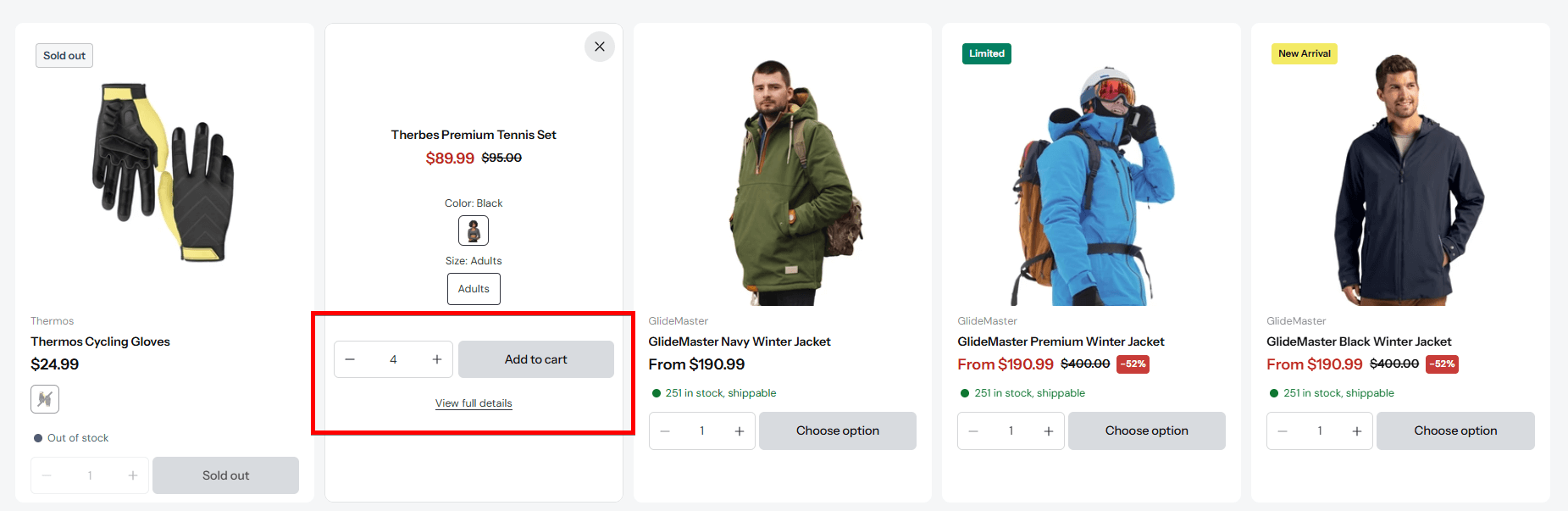
Customers can select the number of items and add products to the cart directly from product cards
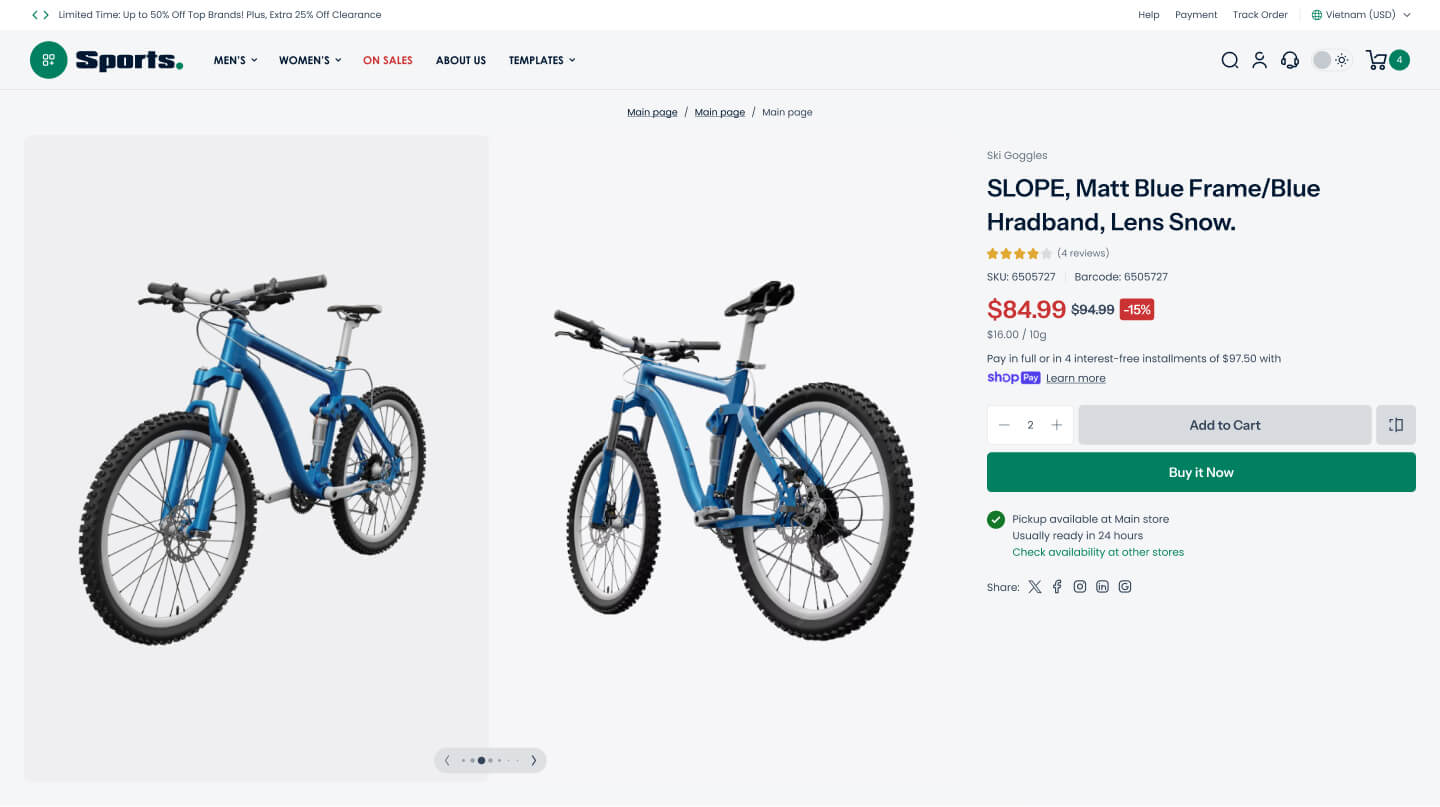
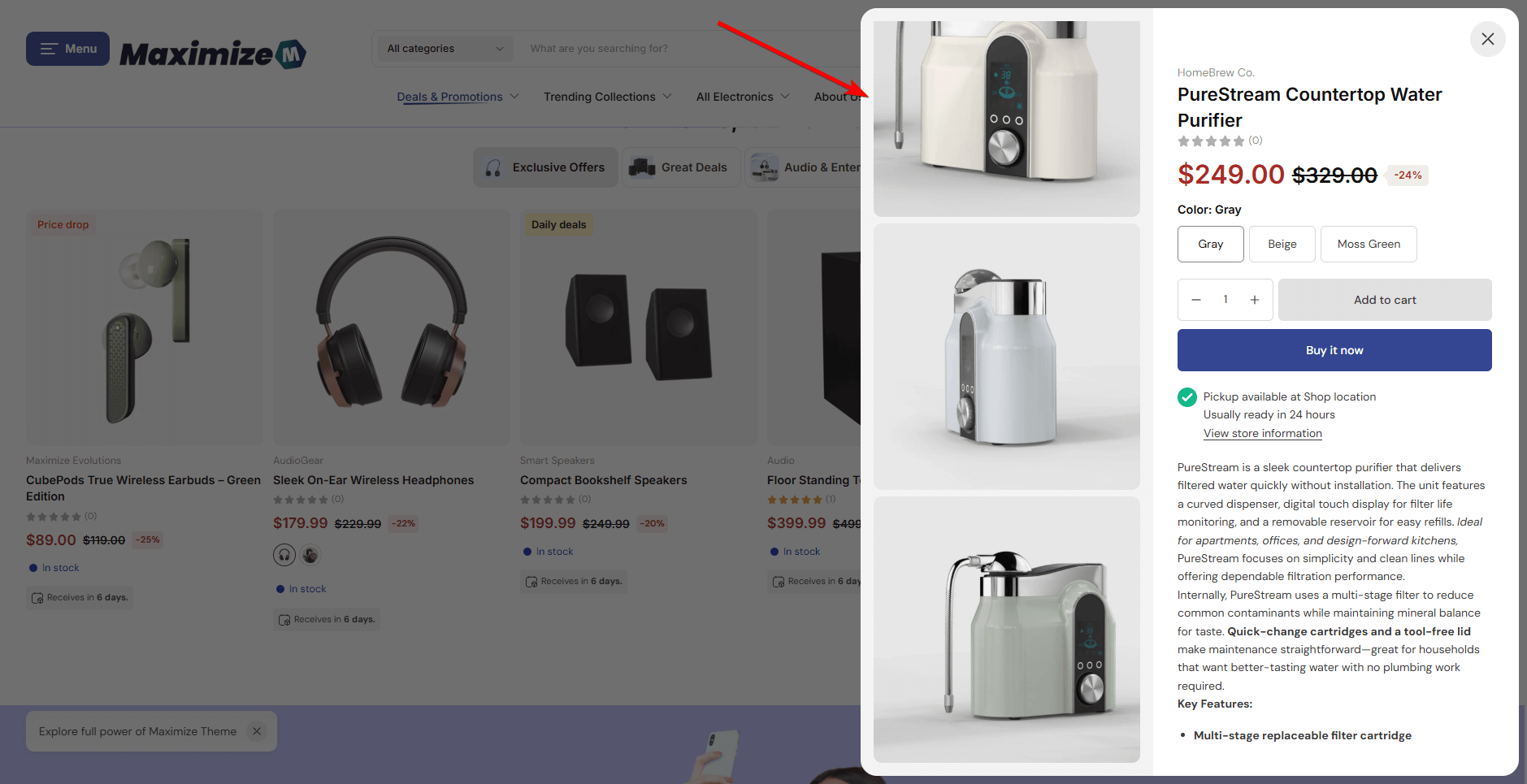
Product images appear more clearly with a new 2-column layout on the product information section.
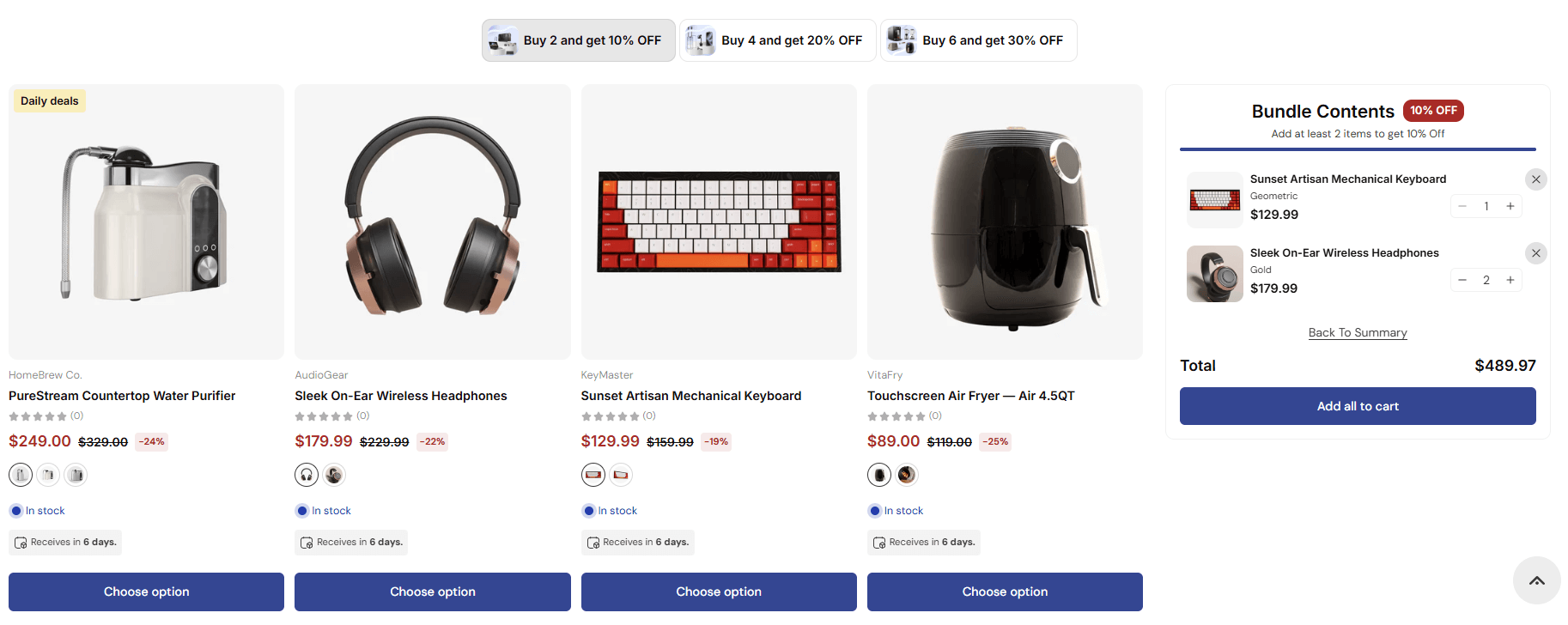
The product bundles section is powered up, now more flexible, encouraging higher order values
Quick View now shows more visuals at once, helping customers decide faster
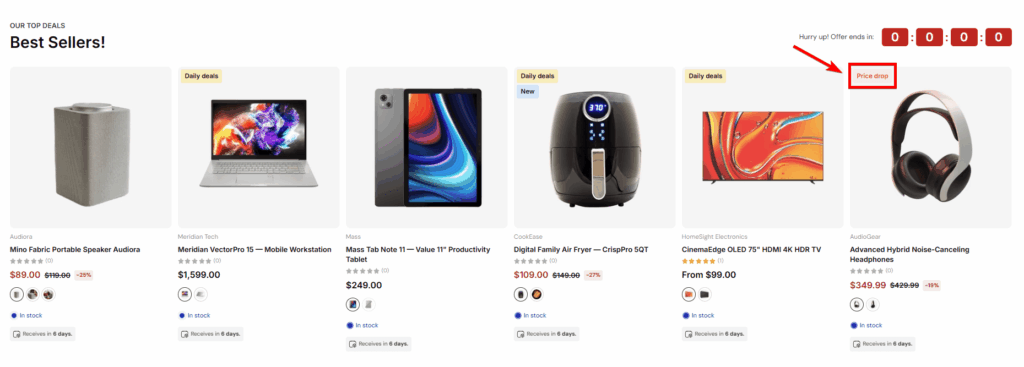
Smarter product and badge labels that display dynamic content for each product or variant.
Each of these updates shares one goal: make buying feel effortless.
Buying More with Add-to-Cart + Quantity on Product Cards
In the previous version of the Maximize Shopify Theme, if the customer sees their favorite product on the collection page, for example. Then they can tap Add to cart. And done! Easy buying. But what if they want to add 2, 3, or 100 of those items to the cart? Well, this is awkward. Since there was no “Quantity selector” button for the customer to quickly tell your store how many items they want.
But now, everything is solved! Not just the “Add to cart” button, you, as the store owners, can show the “Quantity selector” right on the product card, too!
So with the latest Maximize Shopify Theme version, shoppers can now:
Select quantity
Add items to cart
Stay exactly where they are
All directly from the product card.
From a customer’s perspective, this feels natural. There’s no interruption, no forced pause to “learn more” when they’re already ready to buy.
Good design doesn’t push customers forward. It simply removes the brakes.
🔍 How to apply the changes: In the Theme Editor: – Go to the Theme Settings ⚙️ tab – Tap on the Product cards setting section – Scroll down to find the Overlay setting group – In Desktop/Mobile “Add to cart” button layout setting, choose “Bottom of product card with quantity selector”.
A New 2-Column Product Media Layout That Builds Trust
Customers don’t read product descriptions before they feel confident. They look.
The new 2-column product media layout in the Maximize Shopify theme gives visuals the space they deserve. Multiple images appear at once, creating a calm, confident presentation.
From the shopper’s point of view:
Products feel more real
Details are easier to understand
Fewer surprises appear after purchase
This isn’t about adding more content. It’s about showing the right content – clearly.
🔍 How to apply the changes: In the Theme Editor: – Click on the Home page drop-down menu on top, choose Products > and choose the product page template you want to edit (normally Default product) – Tap on the Product information section right below the Template setting group. – On the settings panel, find Media > Desktop layout setting. – Choose “2 Columns”.
More Flexible Product Bundles That Encourage Bigger Orders
Bundles work because customers love value. Making it feel too restrictive limits the power of the Product bundle section.
With version 1.3.0, the Maximize Shopify theme removes unnecessary limits on bundle quantities. Customers can now adjust quantities freely, without friction or confusing rules.
From the customer’s perspective, this feels empowering:
“I’ll take two of these.”
“Actually, make it three.”
No resistance. No warnings. Just choice. And when customers feel in control, they often buy more.
Why this matters for customers
More freedom
Better value perception
A smoother buying experience
🔍 How to apply the changes: In the Theme Editor: – Under the Template setting group, add the Product bundle section. – Tap on the Bundle block to open the settings panel. – Find and turn off “Each product can be added once“.
A Quick View That Actually Helps Customers Decide
Quick View is meant to help customers decide faster, not tease them.
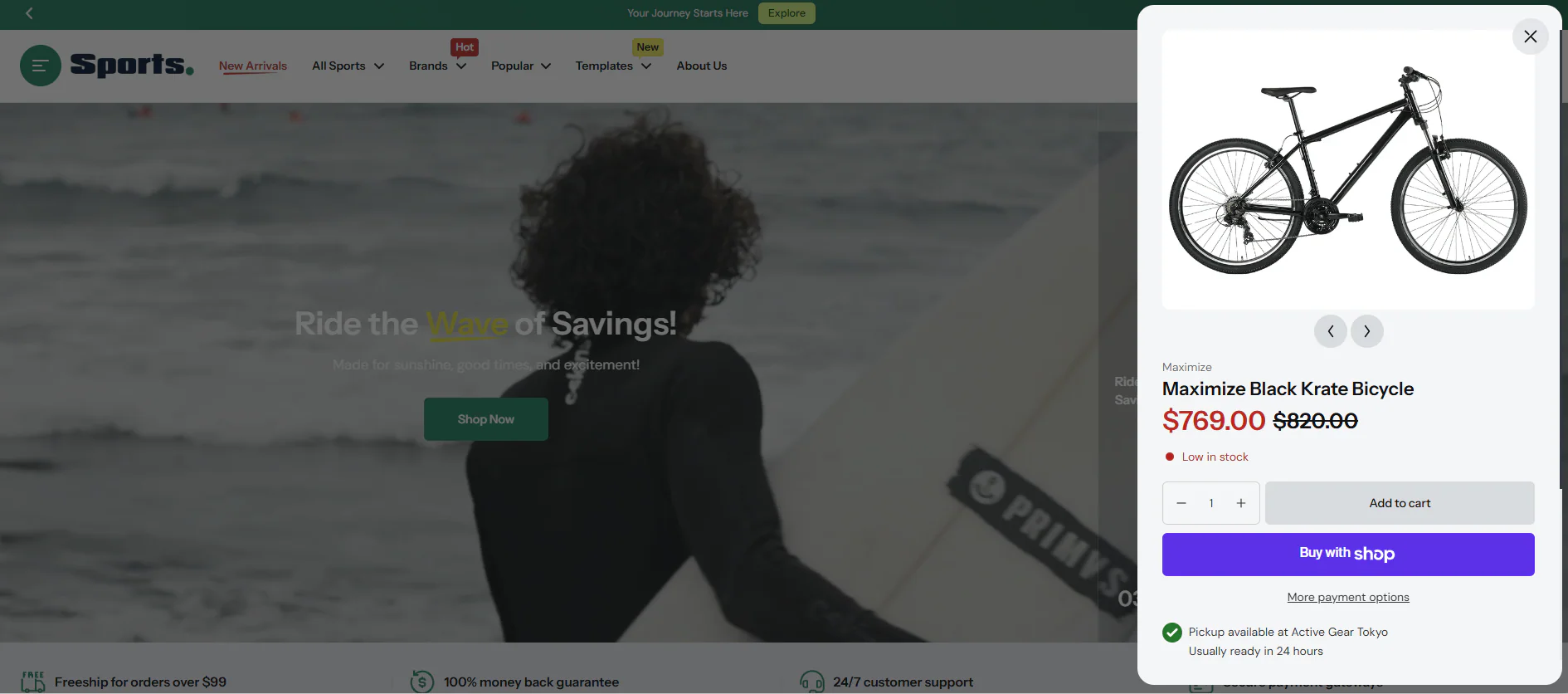
In version 1.2.0, Quick View in the Maximize Shopify theme was improved to show multiple images and media in a smooth slide layout. Customers can now understand the product without leaving the collection page.
Before v1.2.0
After v1.2.0
When customers hesitate, it’s rarely because they don’t want the product. It’s because they don’t see enough. So now, when all the images are displayed beautifully, with fewer clicks and better clarity, customers can buy with confidence.
Smarter Product Labels That Show Dynamic Contents
Labels are a good way to draw customers’ attention instantly. In version 1.2.0 updates, this feature is even more powerful. Since now, the Maximize Shopifytheme allows labels & badges to display metafield content tailored for each product/ variant.
Let’s say you are using the Sold Out label type, which helps your customers know what products are currently out of stock. But for this Jacket product, you want to inform your customer of the date when it will be restocked. Now the Maximize theme can help you display a label that says “Restock on December 24th”, while the others remain as “Sold out”. Easy showing!
This matters because clarity drives confidence. And confidence drives action.
From a customer’s point of view, this transforms the product badges from general signals into clear messages for each kind of product.
From a merchant’s point of view, you can apply this feature to 5 types of product labels available in the Maximize theme:
Text label
Pre-order label
Sale label
Sold out label
New product label.
Except for the Image label type, all can be combined with Shopify metafields for dynamic content.
This update ensures that when customers see a label, it actually helps them make a decision, rather than interrupting it.
🔍 How to apply the changes: In the Theme Editor: – Under the Overlay setting group, tap on the Product labels and badges section to open the settings panel. – Scroll down and find the “Content” field. – Enter your metafield key; you must set it up in the admin in advanced. (For more details, read our user guide)
Why These Updates Define the Maximize Shopify Theme?
None of these improvements is loud. None of them begs for attention.
That’s the philosophy behind the Maximize Shopifytheme.
Instead of overwhelming customers with features, it focuses on removing friction, boosting conversion with ux design, and letting products shine!
Good design doesn’t convince customers to buy. It simply makes buying feel obvious. Explore the Maximize Theme updates in the demo store:
Final Thoughts: Good Design Is Invisible
With updates in versions 1.2.0 and 1.3.0, the Maximize Shopify theme continues to refine what matters most: how customers feel while shopping.
If you are building a Shopify store in electronics, sports, home&decor, and want to refresh the whole vibe of your online business, try the Maximize theme! It’s powerful, affordable, make your store ready to use with a free design & store set up service included in each purchase!
Huong Nguyen is a Business Analyst at Omni Themes - a Shopify theme provider, dedicated to creating Shopify themes that drive results. Her analytical skills and passion for user experience ensure each theme is both beautiful and functional, helping businesses to grow. Connect with Huong on LinkedIn to explore how she can elevate your online store.
Omni Themes offers free services, expert design consulting, and more for Eurus & Maximize Themes’ customers. You are just one click away from all the benefits!