Search engine optimization (SEO) plays a critical role in how customers discover your Shopify store. While paid ads can drive short-term traffic, SEO helps you build a sustainable source of organic traffic over time by reaching users who are actively searching for your products.
However, knowing that SEO matters is one thing; knowing where to start is another. Shopify already handles part of the technical foundation, but ranking higher still depends on how you optimize your content, structure your site, and build authority.
In this guide, we’ll walk you through Shopify SEO step by step, from what the platform handles by default to how you implement on-page, technical, and off-page SEO, and finally, how to measure your performance effectively.
Understand what Shopify already does for SEO
Before optimizing anything, it’s important to understand a simple truth: not all SEO work on Shopify is your responsibility.
Shopify already takes care of several foundational SEO elements at the platform level. These built-in features ensure that every store starts with a technically solid baseline, without requiring manual setup or advanced knowledge. This is why many beginners can launch a store that is already indexable and secure from day one.
Here’s a clear breakdown of what Shopify handles out of the box:
What Shopify handles automatically | What it does |
TECHNICAL SEO | |
XML Sitemap | Generates and keeps sitemap.xml up to date whenever products, pages, or blog posts are added or removed. The sitemap location is declared in robots.txt so Google can discover it, but owners still need to submit the URL manually in Google Search Console for faster indexing. |
Canonical Tags | Inserts <link rel=”canonical”> on every product page to declare the authoritative URL. When the same product appears under multiple collections, this prevents Google from treating them as duplicate content. |
HTTPS | Every store gets a free SSL certificate and HTTPS enabled automatically. Google uses HTTPS as a ranking signal, and browsers flag non-HTTPS sites as “Not Secure”, which hurts trust and conversions. |
robots.txt | Creates a robots.txt file that blocks non-essential pages (cart, admin, checkout) from being crawled, so Google’s crawl budget stays focused on content that actually matters for rankings. |
Image Compression & CDN | Shopify serves optimized image formats (like WebP/AVIF) dynamically via CDN depending on browser support. It reduces load times and directly impacts Core Web Vitals scores. |
STRUCTURED DATA | |
Product Schema Markup | Injects Product JSON-LD schema (Schema.org standard) with price, stock status, ratings, and brand into every product page. This enables Google to display rich snippets, star ratings, price, and availability directly in search results, increasing click-through rate. |
Breadcrumb Schema | Home → Collection → Product navigation is marked up with BreadcrumbList schema, letting Google display the site path in search snippets. |
CONTENT & ON-PAGE | |
Meta Title Fallback | If an owner leaves the SEO title field blank, Shopify auto-fills it from the product or page name. This ensures no page is ever completely missing a title tag, though writing a custom title with target keywords is always better. |
H1 Heading | Official Shopify themes automatically render the product or page name as the <h1>, unique per page, correctly positioned. This is the strongest on-page signal Google reads to understand what a page is about. |
URL & NAVIGATION | |
Clean URL Structure | URLs are auto-formatted as /products/product-name, /collections/name, and /blogs/news/post-title — lowercase, hyphenated, no query strings. Clean URLs are easier for Google to parse and more trustworthy to users. Note: The URL prefixes (/products/, /collections/, and /blogs/) are fixed; Shopify merchants cannot remove or adjust them. |
301 redirects on URL change | When a product or page URL is changed, Shopify automatically creates a 301 redirect from the old URL to the new one. This preserves accumulated link equity and prevents 404 errors that would otherwise signal broken content to Google. |
These built-in optimizations are applied uniformly across all Shopify stores, so they don’t give you any real competitive advantage. What actually determines whether your store ranks and attracts organic traffic comes down to the areas Shopify leaves in your control, how you structure your content, target the right keywords, optimize advanced technical elements, and build authority for your store.
In the following sections, we’ll break down the best practices for each of these areas, so you can turn these fundamentals into measurable ranking improvements and sustainable traffic growth.
On-page Shopify SEO — Help search engines understand your pages
On-page SEO is how you communicate with search engines through the content and structure of your store. While Shopify handles the technical groundwork, on-page SEO is where you tell Google what each page is about, who it’s for, and why it deserves to rank. This section walks you through the three core areas: finding the right keywords, building a content structure around them, and optimizing every element on the page.
Keyword research & mapping
Before writing a single product description or blog post, you need to know what your potential customers are actually searching for. Keyword research gives you that answer, and mapping those keywords to the right pages ensures every page on your store is targeting a search term it can realistically rank for.
How to do it:
- Keyword research: Use tools like Google Keyword Planner, Ahrefs, or Semrush to find keywords by search volume, intent, and competition level
- Mapping keywords to the right page type: Every page on your store should target one primary keyword. Without a clear mapping, multiple pages end up competing against each other for the same term, a problem known as keyword cannibalization, which splits your ranking signals and weakens both pages.
- For homepage: target your broadest brand or category keyword (e.g., “handmade leather bags”).
- For collection pages: target category-level keywords with commercial intent (e.g., “leather tote bags for women”).
- For product pages: target specific, high-intent keywords (e.g., “brown leather tote bag with zipper”).
- For blog posts: target informational keywords that support your product categories (e.g., “how to care for a leather bag”).
- Assign one primary keyword per page: Track which keyword belongs to which URL in a simple spreadsheet, then use it as your reference when editing SEO fields across Admin → Products, Collections, Pages, and Blog Posts.
- Group related keywords into topic clusters: Organize closely related keywords around a central topic (pillar). This helps you plan content more strategically and sets the foundation for internal linking and topical authority in later steps.
Build your topic cluster
A topic cluster is a group of interlinked pages built around one central pillar page, helping search engines understand your content and strengthening your store’s topical authority.
How to do it:
A topic cluster is a group of interlinked pages built around one central pillar page. Where keyword mapping tells you which keyword belongs to which page, topic clusters tell you how those pages should connect, helping search engines understand your store’s depth on a subject.
How to do it:
- Start with a pillar page: Choose one page that targets your broadest, highest-volume category keyword (e.g., “leather bags”). This is typically a collection page or a comprehensive guide, and it serves as the central hub for the entire cluster.
- Build cluster pages that target distinct keywords and intents: Using the page types from your keyword map above, create supporting pages that expand on the pillar topic from multiple angles.
For example, a “leather bags” pillar cluster might include:- informational blog posts (“how to care for a leather bag”)
- Consideration-stage content (“best leather bags under $200”)
- Sub-collection pages for more specific categories (“leather crossbody bags”).
Each page targets a unique keyword and serves a distinct role within the cluster.
- Optimize for AI-driven search: As AI Overviews and answer engines like ChatGPT and Perplexity increasingly surface product recommendations directly in search results, your content needs to be structured for machines, not just humans. Use clear headings, concise definitions, direct answers to common questions, and structured data to make it easier for AI systems to extract and cite your content.
- Keep each cluster focused and scalable: Avoid mixing unrelated topics within the same cluster. As you publish new content, continue expanding existing clusters rather than creating disconnected pages. This builds depth and strengthens your topical authority over time.
Apply your keywords across page elements
With your keywords mapped and your content structure in place, the final step is making sure every element on each page is optimized to reinforce your target keyword. These are the signals Google reads most directly when deciding how to rank a page.
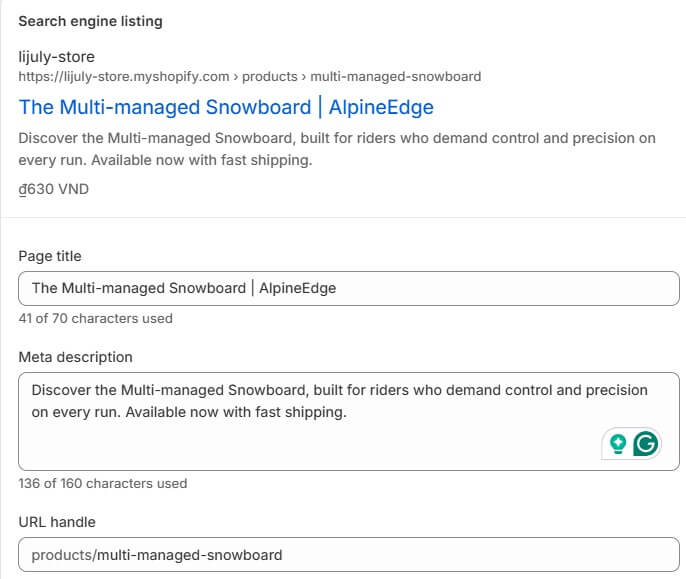
- Title tag & meta description
The title tag is the single most important on-page SEO element. It tells Google what your page is about and is the first thing a searcher sees in the results. The meta description does not directly affect ranking, but a well-written one increases click-through rate, which brings more traffic from the same ranking position.
Best practices:
- Keep title tags under 60 characters; place your primary keyword near the front
- Write meta descriptions under 155 characters; include your keyword and a clear value proposition or call to action
- Every page should have a unique title and meta description, and avoid duplicates across product or collection pages
How to implement in Shopify: Go to the page you want to edit (product, collection, or blog post) → scroll to the bottom → click Edit website SEO → update the SEO title and meta description fields directly.
- URL structure
A clean, descriptive URL helps both Google and users understand what a page is about before clicking. Shopify auto-generates URLs from page titles, which often include unnecessary words or default to long strings that dilute the keyword signal.
Best practices:
- Keep URLs short and keyword-focused: /collections/mens-running-shoes over /collections/mens-shoes-collection-2024-new.
- Use hyphens to separate words, all lowercase.
- Remove stop words (and, the, a, for) where possible.
- Avoid changing URLs on live pages unless necessary; always set up a redirect if you do.
How to implement in Shopify: When creating or editing a page, scroll to Edit website SEO → update the URL handle field. If changing an existing URL, Shopify will prompt you to create a redirect automatically; always accept it.
- H1 and heading hierarchy
Your H1 tells search engines the primary topic of the page. A clear heading structure (H1 → H2 → H3) makes content easier to crawl and helps Google understand how your content is organized.
Best practices:
- Use exactly one H1 per page; it should include your primary keyword and match the page’s intent
- Use H2s for major sections, H3s for subsections, don’t skip levels
- On product pages, the product name is typically the H1; don’t leave it as a generic theme default
How to implement in Shopify: Most Shopify themes automatically assign the page or product title as the H1. For blog posts and custom pages, use the rich text editor and select heading levels explicitly. If you’re editing theme code, check that <h1> tags aren’t being used for decorative elements elsewhere on the page.
- Product & collection page descriptions
Thin or duplicate descriptions are one of the most common SEO weaknesses in Shopify stores. Many merchants copy descriptions directly from the manufacturer, which means dozens of other stores have identical content, and Google has no reason to rank any one of them over another.
Best practices:
- Write unique descriptions for every product and collection, including your primary and secondary keywords naturally.
- For collection pages specifically, add a short paragraph at the top and/or bottom of the page; many stores leave this blank entirely.
- Focus on benefits, use cases, and context, not just specifications.
How to implement in Shopify: Edit descriptions directly in the product or collection editor.
- For the product page, go to Admin → Products → Description field.
- For the collection page, go to Admin → Collections → Collection description field. (above or below the product grid, configurable by theme).
- Image alt text & file name
Google cannot see images; it reads the alt text and file name to understand what an image contains. Optimized images can rank in Google Image Search and contribute additional keyword signals to the page they appear on.
Best practices:
- Write descriptive alt text for every product image: red-leather-crossbody-bag, not IMG_4823
- Name image files with keywords before uploading — Shopify doesn’t let you rename files after upload
- Keep alt text concise and descriptive (under 125 characters); don’t stuff keywords
How to implement in Shopify:
- For images in product pages, go to Admin → Products → select product → click image → Add alt text.
- For images in CMS pages or blog posts, go to the content editor, click the image → Edit alt text.
- For theme images (banners, lifestyle photos), alt text can be added via the theme editor or directly in theme code. You can set up via Admin → Online Store → Themes → Customize → select the section containing the image → Edit.
Connect your pages strategically with internal links
Internal links pass authority between the pages you want to rank. They also help search engines understand how your content is structured, what pages are related, and which ones matter most. A well-linked store ensures that your most important pages, pillar pages, and high-converting product pages accumulate the most link equity.
Principles to follow:
- Link based on topical relevance: Only add an internal link when there’s a genuine content connection between the two pages. Google evaluates internal links based on the surrounding context; a relevant link in the middle of related content carries more weight than a link forced in where it doesn’t belong.
- Follow a two-way linking pattern across your store: Linking in both directions helps Google understand the relationship between pages and ensures authority flows across your site rather than accumulating in one direction.
- Collection ↔ related collections (e.g., “Men’s Shoes” ↔ “Men’s Sneakers”)
- Collection ↔ product pages within that collection
- Product ↔ related product suggestions
- Blog posts ↔ the product or collection pages they reference
- Use descriptive anchor text: Anchor text should describe the destination page and ideally contain its primary keyword. Avoid generic phrases like “click here”, “read more”, or “this page”. These give Google no context about what the linked page is about.
How to implement in Shopify:
- All contextual internal links are added through the rich text editor. This applies to blog posts, product descriptions, and collection descriptions. The process is the same across all page types: highlight your anchor text → click the link icon → paste the destination URL.
- The one exception is related product links. These are typically handled automatically by your theme’s “You may also like” section, configurable under Online Store → Themes → Customize.
Technical SEO for Shopify — Make your store easy to crawl and index
Technical SEO makes sure Google can actually reach, crawl, and index those pages in the first place. Even the best-optimized content won’t rank if search engines hit dead ends, slow load times, or conflicting signals when trying to access your store. This section covers the five technical areas that have the most direct impact on how Shopify stores perform in search.
Keep your site structure flat and easy to navigate
A logical site structure helps Google crawl your store efficiently and understand which pages are most important. A flat architecture, where every page is reachable within a few clicks from the homepage, ensures no important page gets overlooked during crawling.
Best practices:
- Keep your structure shallow: Homepage → Collection → Product, ideally within 3 clicks
- Use breadcrumb navigation to reinforce hierarchy and give Google additional context about where each page sits in your store
- Group products into clearly defined collections, and avoid dumping unrelated products into a single catch-all collection
How to implement in Shopify:
- Structure your collections intentionally when setting up navigation under Online Store → Navigation.
- For breadcrumbs, most Shopify themes include this natively. Check your theme settings under Online Store → Themes → Customize to enable it.
Optimize page speed by reducing unnecessary load
Page speed is a confirmed Google ranking signal, and slow pages lose customers. For Shopify stores, the most common causes are uncompressed images, unused apps, and bloated theme code.
How to implement:
- Resize and compress images to the appropriate dimensions before uploading: Shopify automatically converts images to WebP on delivery, but the original file size still affects load performance. You can use tools like TinyPNG or Squoosh before uploading.
- Audit and uninstall apps you’re no longer actively using: Every installed app adds code that loads on your storefront, even if you don’t see it. Review installed apps under Apps and remove anything inactive.
- Choose a lightweight, well-coded theme: Heavily customized or feature-rich themes often carry significant speed overhead. If you’re evaluating theme options, Omni Themes builds Shopify themes specifically optimized for performance and conversion, with Core Web Vitals compliance built in.
- Use Google PageSpeed Insights or Shopify’s built-in speed report to identify specific issues. Check your store’s speed score under Online Store → Themes. Shopify provides a benchmark against similar stores.
Control crawling with robots.txt and manage crawl budget
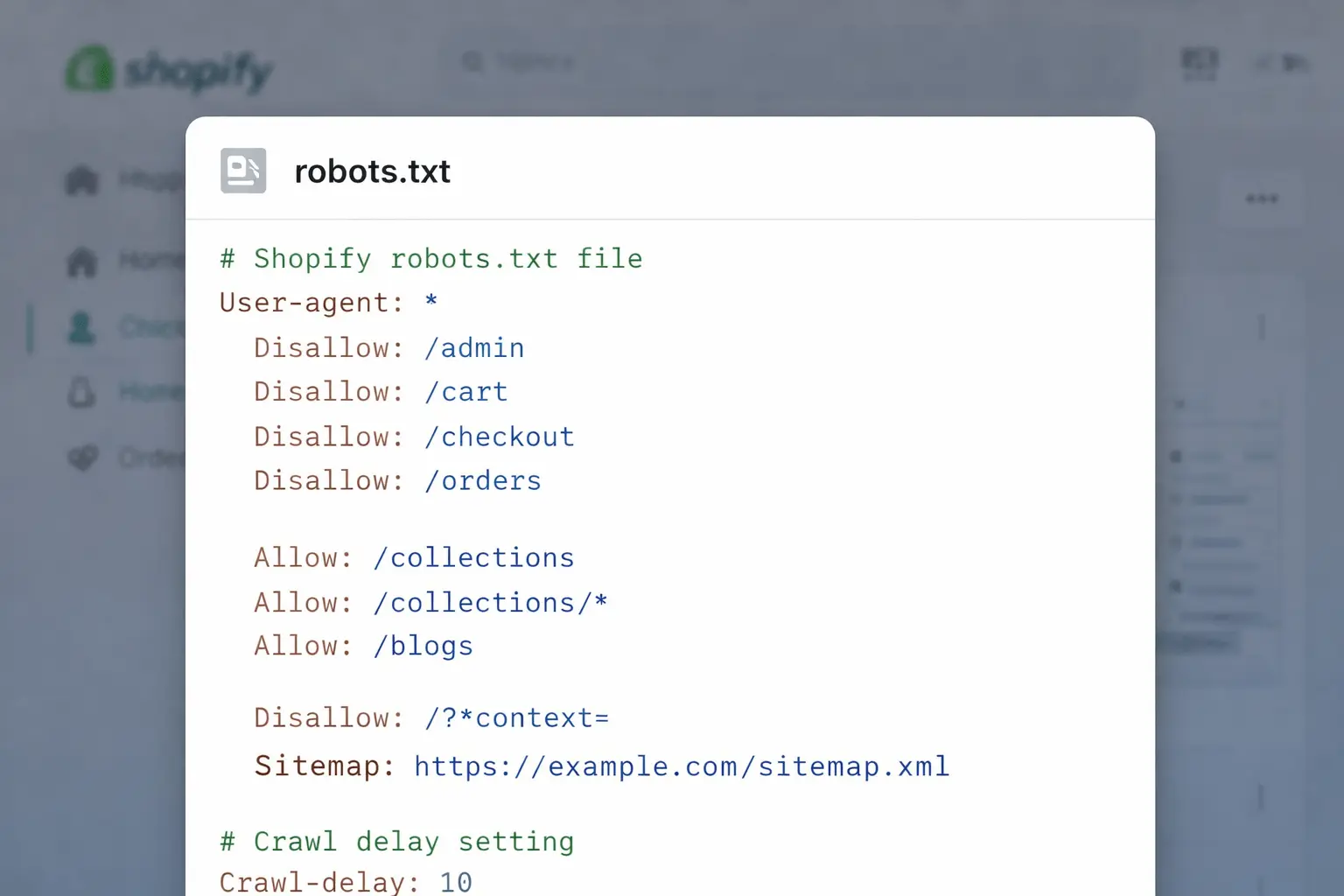
Crawl budget refers to how many pages Google will crawl on your site within a given timeframe. For large stores, wasting crawl budget on low-value pages, like internal search results, tag pages, or filtered URLs, means important product and collection pages get crawled less frequently.
Best practices:
- Block pages with no SEO value from being crawled: internal search results (/search), account pages, cart pages.
- Avoid creating large numbers of tag pages unless they serve a clear SEO purpose.
- Don’t block pages you want indexed: a common mistake when editing robots.txt without fully understanding the impact
How to implement in Shopify: Shopify allows merchants to edit their robots.txt file directly via the theme editor. Go to Online Store → Themes → Edit Code → find robots.txt.liquid and edit with caution. Incorrect rules can accidentally block important pages from being crawled.
Implement advanced structured data to enhance search visibility
Schema markup is structured data that enables rich search results, such as star ratings, prices, availability, and FAQ dropdowns. Rich results increase visibility and typically improve click-through rates without requiring a higher ranking position.
Shopify automatically generates some basic Product schemas covering price, availability, and product name. To further enhance your search visibility, you can implement additional structured data on top of what Shopify already provides:
- FAQPage: Generates FAQ dropdowns directly in the SERP if your product or collection pages include a Q&A section
- Review schema: Enables star ratings in search results.
How to implement in Shopify:
- Before adding any schema manually, audit what your theme already generates to avoid duplication, and use Google’s Rich Results Test on your live URLs.
- For BreadcrumbList and FAQPage schema, you can add JSON-LD manually via Online Store → Themes → Edit Code, or use a dedicated SEO app. To implement a review schema, you’ll need a reviews app that supports structured data output, such as Judge.me or Loox.
- Validate all markup with Google’s Rich Results Test before publishing.
Off-page Shopify SEO — Build authority beyond your store
Off-page SEO tells Google whether your store is worth trusting. The primary signal is backlinks, links from other websites pointing to yours. Google treats these as votes of credibility: the more authoritative the linking site, the stronger the signal.
For Shopify merchants, link building doesn’t require a dedicated PR team. These are the most practical tactics to start with:
- Supplier and brand partner links: If you carry third-party brands or work with suppliers, ask them to link to your store from their “Where to Buy” or retailer pages. These links are highly relevant and often straightforward to obtain.
- Guest posting on niche blogs: Write useful content for blogs in your industry in exchange for a link back to your store. Focus on publications your target customers actually read; relevance matters more than domain size.
- Digital PR: Get your store mentioned in online publications, gift guides, or product review sites. A single feature in a well-trafficked niche publication can deliver both a strong backlink and direct referral traffic.
- Brand mentions: When other sites reference your brand by name, Google may still register these as trust signals, meaning mentions alone contribute to your authority even without a backlink. Monitor them using tools like Google Alerts or Ahrefs. Where relevant, you can follow up to request a link, but the mention itself already carries value.
Choose the right Shopify SEO apps to scale your efforts
Implementing SEO in Shopify manually works when you’re starting, but it doesn’t scale. Updating meta tags one by one, checking broken links individually, or monitoring rankings in a spreadsheet becomes unmanageable as your catalog grows. The right apps automate the repetitive work and surface issues you’d otherwise miss.
Shopify apps for on-page SEO optimization
Managing title tags, meta descriptions, alt text, and structured data across hundreds of products manually is time-consuming and error-prone. On-page SEO apps let you bulk-edit these fields, identify missing or duplicate metadata, and apply changes across your entire catalog at once.
Common features:
- Bulk editing of title tags, meta descriptions, and alt text
- SEO audit dashboard highlighting missing or duplicate fields
- Auto-generation of meta tags based on product data
- Structured data/schema markup management
Suggested apps:
- Plug In SEO
- Booster AI SEO Optimizer
- Tapita AI SEO Optimizer, Speed
Shopify apps for image optimization
Images are the most common cause of slow page speeds on Shopify stores. Image optimization apps compress and resize images automatically after upload — removing the need to manually process every file before adding it to your store.
Common features:
- Automatic compression of uploaded images
- Bulk optimization of the existing image library
- Auto-generation of alt text (including AI-powered suggestions)
- Conversion to next-gen formats where Shopify doesn’t handle it automatically
Suggested apps:
- Tiny SEO Speed Image Optimizer
- Crush: Speed & Image Optimizer
Shopify apps for review schema
Customer reviews contribute to SEO in two ways: they add unique, keyword-rich content to your product pages, and when properly marked up with review schema, they enable star ratings to appear in search results. Most review apps handle the schema output automatically.
Common features:
- Collecting and displaying customer reviews
- Automatic output of review schema for rich results
- Integration with Google Shopping for star ratings
- Review request emails post-purchase
Suggested apps:
- Judge.me
- Stamped.io
- Yotpo
Shopify apps for broken link management
Broken links, both internal and from external sites pointing to deleted pages, waste crawl budget and create poor user experiences. As your store evolves (products discontinued, collections restructured), managing redirects manually becomes difficult to track.
Common features:
- Automatic detection of 404 errors
- Bulk redirect management
- Alerts when new broken links are detected
- Import/export of redirect lists
Suggested apps:
- Easy Redirects – 404/301 SC Easy URL Redirects
- SEO Doctor – Magical SEO Doctor
Shopify apps for page speed optimization
While compressing images addresses one part of page speed, other factors, unused JavaScript, render-blocking code, and unoptimized theme assets, require dedicated tools to identify and fix. Page speed apps analyze your store’s performance and apply technical optimizations that would otherwise require developer involvement.
Common features:
- Lazy loading for images and videos
- JavaScript and CSS minification
- Caching and preloading optimization
- Core Web Vitals monitoring and recommendations
Suggested apps:
- Booster Page Speed Optimizer
- Hyperspeed EXTREME Page Speed
Track SEO performance for your Shopify store
Publishing optimized pages is only half the work. Without tracking, you won’t know which keywords are driving traffic, which pages are underperforming, or whether your efforts are translating into actual results. These three tools form the core measurement stack for any Shopify store.
Track rankings and index coverage with Google Search Console
Google Search Console shows you how your store performs in Google Search, specifically, what keywords your pages are appearing for, how many clicks and impressions they’re generating, and whether Google is successfully crawling and indexing your pages.
What to monitor:
- Performance report: Track impressions, clicks, and average position by page and query. This tells you which keywords are working and where you’re ranking, but not yet converting clicks
- Index Coverage report: Identifies pages that aren’t being indexed and the reason why. This is useful for catching crawl errors, blocked pages, or noindex tags applied incorrectly
- Core Web Vitals report: Flags pages with poor load performance based on real user data
How to set up: Verify your store via Google Search Console → Add Property → enter your Shopify domain → verify ownership using the HTML tag method (add the tag via Online Store → Themes → Edit Code → theme.liquid) or via Google Analytics if already connected.
Track organic traffic and conversions with Google Analytics 4
Where Search Console focuses on search visibility, Google Analytics 4 (GA4) shows you what happens after users land on your site, which organic traffic converts, which pages have high drop-off rates, and how SEO-driven sessions compare to other channels.
What to monitor:
- Acquisition report: Filter by organic search to see traffic volume, engagement rate, and conversions coming specifically from SEO
- Landing page report: Identify which pages are bringing in organic visitors and how well they convert
- Conversion tracking: Set up key events (add to cart, purchase) to measure whether your SEO traffic is generating revenue
How to set up: Go to Google Analytics → Admin → Data Streams → Add Stream → select Web → enter your Shopify URL. Connect to Shopify by adding your GA4 Measurement ID under Online Store → Preferences → Google Analytics, or use the Google & YouTube Shopify app for a more integrated setup.
Track product listing performance with Google Merchant Center
Google Merchant Center is relevant if your store runs Google Shopping campaigns or wants products to appear in organic Shopping results. It syncs your product data, such as price, availability, and images, directly with Google, making your listings eligible for rich product results in search.
What to monitor:
- Product status: Check which products are approved, disapproved, or flagged for missing information
- Price & availability: Ensure product data in Merchant Center stays in sync with your actual store; discrepancies can lead to disapprovals
- Performance: Track impressions and clicks from Shopping surfaces separately from standard organic search
How to set up: Install the Google & YouTube app from the Shopify App Store. Once connected, it automatically syncs your product catalog, including price, availability, and images, to Google Merchant Center and keeps the data updated in real time as you make changes in your store.
Conclusion
SEO for Shopify is not about one single tactic. It is the result of combining multiple elements, including understanding what Shopify handles for you, optimizing your on-page content, ensuring your store is technically sound, building authority through off-page efforts, and tracking performance over time.
When these pieces work together, your store becomes easier to discover, easier to understand, and more competitive in search results. This leads to consistent organic traffic growth.
To support this process, choosing the right theme also plays an important role. A well-optimized theme can improve site speed, structure, and overall SEO performance. If you’re evaluating theme options, Omni Themes builds Shopify themes (Eurus Theme and Maximize Theme) designed for performance and conversion from the ground up, so your SEO work has the right foundation to build on.