Upgrading a Shopify theme sounds simple, but in practice, it is often more than adding a new version and clicking publish. The real challenge is making sure your layouts, customizations, app integrations, and buying flows still work as expected afterwards.
This guide explains what actually changes during a Shopify theme upgrade, how to choose the right approach for your store, and how to carry out the upgrade without disrupting your storefront.
What happens when you upgrade a Shopify theme (and why it’s not simple)
A Shopify theme upgrade introduces a new version of the theme with updated templates, sections, and underlying code. These determine how pages are structured, what layout options are available, and how features behave.
Because these elements can change between versions, the new theme does not necessarily align with how your current storefront is set up. As a result, upgrading is not a direct transfer. It is the process of adapting your store to a different theme structure.
Note: Shopify may automatically apply certain security updates to themes. These updates do not change your store’s layout, content, or settings. This guide focuses on manual theme version upgrades, where structural or feature changes may affect your storefront.
What carries over from your current theme
These elements are typically preserved because they are managed through the theme editor rather than the theme’s core code:
- Theme editor settings: Layout configuration, colors, typography, and section settings carry over to the updated version.
- Section and block structure: Changes made in the editor, such as adding, removing, or rearranging sections and blocks, are copied to the new version.
- Templates created in the theme editor: Templates and their assigned layouts are usually retained.
- App embeds and app extension settings: If configured through the theme editor, these are also copied over.
- Store content: Products, collections, and pages are unaffected, as they exist outside the theme.
Even when these elements are transferred, they should still be reviewed, as structural changes in the new version can affect how they render.
What needs to be reapplied or adjusted
These elements depend on the theme’s structure and code, which can differ between versions:
- Custom code (Liquid, CSS, JavaScript): Code edits are not guaranteed to carry over. If they do not conflict with the new version, Shopify may automatically include them. If not, they need to be reviewed and manually reapplied.
- Customized templates and sections: Structural changes or added components may not exist or behave the same in the new version.
- App integrations tied to theme structure: App embeds configured in the theme editor may carry over, but apps that rely on custom code, specific layout positions, or injected scripts should be tested carefully. Some apps may not behave the same way, or may not be compatible with the updated theme.
What does this mean for your store?
Parts of your current storefront depend on elements that do not carry over directly. The more your store relies on those elements, the more work is required to match the new version. This is why some upgrades are quick, while others require reworking key parts of the experience
Understanding this upfront is what allows you to choose the right upgrade approach in the next step.
Should you upgrade your theme, or take a different approach?
The right approach to a Shopify theme upgrade depends on two factors:
- How much the new theme version has changed, especially in templates, sections, and available blocks
- How your current store is built, particularly whether it relies on theme settings, modified templates, or custom code
When a direct theme upgrade with minimal changes works well
A straightforward upgrade is possible when your store still closely follows the theme’s default structure, and the new version introduces improvements rather than structural changes.
This typically applies when:
- Most of your store is built using the theme editor (sections and settings).
- Core pages, such as product, collection, and cart, still follow the theme’s default layout.
- You have little or no custom code in theme files.
- The new version mainly adds new sections, features, or styling options, without changing how those pages are structured.
In this scenario, the new version aligns closely with your current setup. Most layouts and configurations carry over, and the upgrade is largely a matter of reviewing and adjusting small differences.
When you need a controlled upgrade with some rework
A more controlled upgrade with some rework is needed when the new version changes important page structure, and your store has already moved beyond the default theme setup.
This typically applies when:
- Key pages, such as the homepage or product page, have been customized beyond the original layout.
- You rely on features or apps that change how key pages work, not just add content
- (e.g., bundles, subscriptions, or custom product options that affect the product page logic). These depend on the page structure, so changes in the new theme version require them to be reconfigured.
- The new version changes sections, blocks, or layout options on those pages.
- Part of your current storefront can still carry over, but not all of it.
In this scenario, some elements transfer cleanly, but key pages need to be reconfigured or partially rebuilt to match the new version.
When rebuilding may be more effective
Rebuilding becomes the better option when the new version changes the core structure, and too much of your current storefront would need to be recreated manually.
This typically applies when:
- Core pages rely heavily on custom code or heavily modified templates
- Your storefront includes non-standard layouts or bespoke functionality
- Multiple important features depend on edits made directly in theme files
- The new version changes the underlying structure of the pages you depend on
In this situation, much of your existing setup cannot be reused directly. Reapplying everything on top of the new version can be time-consuming and difficult to maintain.
A rebuild allows you to start from the new theme structure, reintroduce only what is necessary, and avoid carrying over outdated or conflicting customizations.
Modern Shopify themes are increasingly designed as more complete storefront systems, rather than just a presentation layer. Many now include built-in features such as advanced filtering, upsells, and promotional components, which would otherwise require multiple third-party apps.
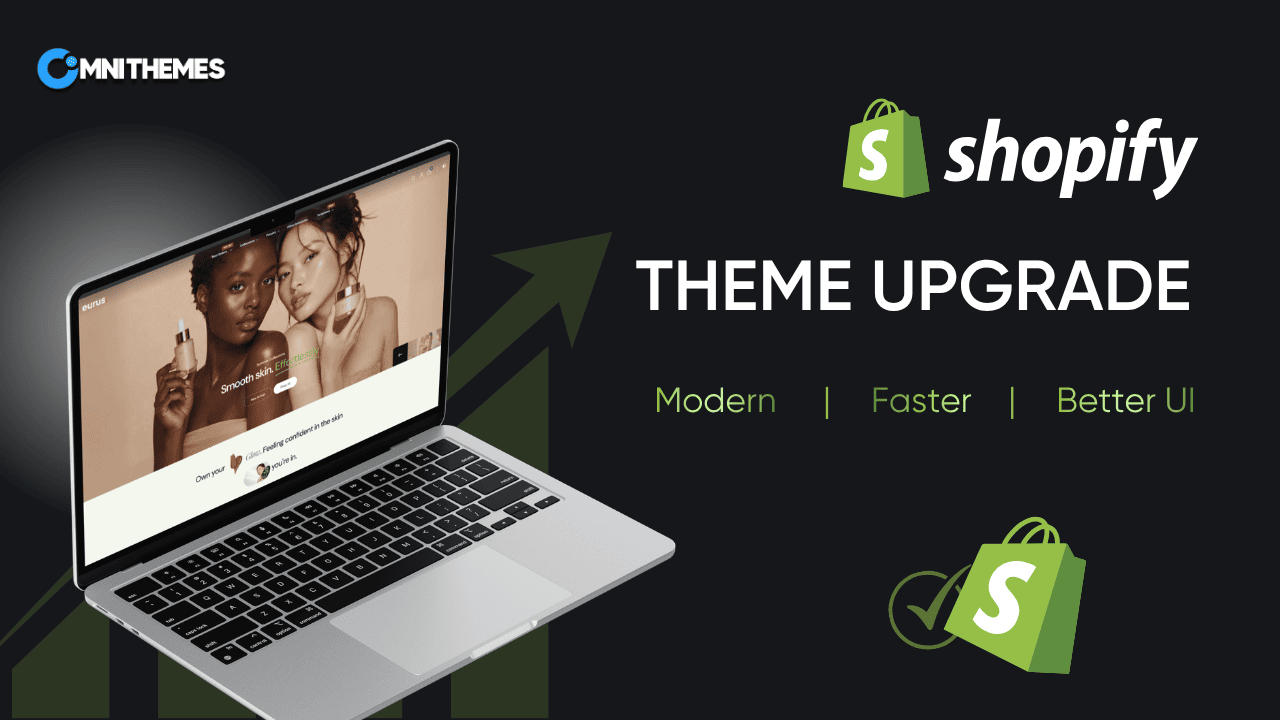
| For example, themes like Eurus by Omni Themes are an all-in-one setup, with a strong focus on reducing app dependency, maintaining lightweight performance, and allowing merchants to manage most storefront functionality directly through theme settings. When upgrading would require reapplying many customizations or app-dependent features, moving to a more structured, feature-rich theme can be a more maintainable long-term approach. |
How to upgrade your Shopify theme without breaking your store
If your store can be upgraded without a full rebuild, the next step is to carry out the upgrade in a way that preserves your existing storefront.
The process itself is straightforward. The risk comes from how layouts, customizations, and app-driven functionality are handled during the transition.
Step 1. Check your current theme version and update status
In Online Store → Themes, click the version number on your current theme to check whether an update is available.
If an update exists, you can add the new version to your theme library and review it before publishing.
Step 2. Duplicate your current theme
Duplicate your live theme before making any changes.
This gives you:
- A working backup
- A reference point for layouts, settings, and functionality
- A fallback if the upgraded version behaves differently
Step 3. Add the latest theme version to your library
If your theme supports updates, Shopify lets you add the updated version to your theme library from the update notification. Shopify adds it as a separate theme, not as an in-place replacement of the live one.
If this option is not available, you may need to install a fresh copy of the theme and manually reapply your settings and customizations. This is more common with unsupported themes or themes that do not provide standard update compatibility.
Step 4. Define what needs to be carried forward — and how
Before working on the new theme, define what your upgraded storefront needs to achieve, then decide how each part should be handled.
1. Start from business-critical elements
Make a short list of the parts of your store you cannot afford to lose:
- Product page content blocks and buying flow
- Navigation and collection filtering behaviour
- Trust elements, upsells, subscriptions, bundles, or other revenue-driving features
- Any layout or styling that supports conversion
Then identify what is less critical or can be simplified:
- Legacy sections or layouts no longer used
- Workarounds or customizations that exist due to past limitations
- Styling or features that do not contribute to performance or usability
2. Map how your current store is built
For each element, identify how it is implemented today:
- Built using theme settings or sections
- Created through modified templates or layout changes
- Implemented via custom code
- Driven by apps or integrations
This determines whether it will:
- Carry over automatically
- Need to be reconfigured
- Require manual reimplementation
3. Decide the right approach for each element
Combine what matters (business impact) with how it is built (implementation):
- If it is critical and supported by the new theme → carry it over
- If it is critical but depends on a custom structure → rebuild it using the new theme’s capabilities
- If it is not critical or no longer fits → remove or simplify it
At the end of this step, you should have a clear plan: What stays, what needs to be changed, and what can be dropped. This ensures the upgrade improves your store, rather than just replicating it.
Step 5. Reapply and validate customizations selectively
With a clear plan in place, the next step is to apply it to the new theme.
Rather than transferring everything from your current theme, work through each element based on the decisions made in Step 4. The goal is to carry forward what matters, rebuild what needs to change, and avoid bringing over unnecessary complexity.
Focus on:
- Layouts and pages: Recreate key pages (homepage, product, collection, cart) using the new theme’s sections. Match the structure, but use improved sections where available.
- Styling: Bring back only essential styling (colors, spacing, branding). Remove rules targeting elements that no longer exist
- Custom functionality: Reintroduce only business-critical logic. Rebuild functionality using the new theme’s sections, blocks, or settings where possible.
- App-driven features: Reconnect the app embeds or blocks and place them correctly in the layout. Ensure they integrate properly with the page structure. Then make sure they behave correctly within the buying flow, not just appear on the page.
Step 6. Test your store end-to-end before publishing
Test the upgraded theme using its preview version before making it live.
In Online Store → Themes, click Preview on the new theme. This allows you to test the full storefront experience without affecting your live site.
Test the key customer journeys:
- Navigation → collection → product
- Product page → add to cart → checkout
- Mobile browsing and navigation
- Any flows involving apps (e.g. bundles, subscriptions, filters)
Check for:
- Actions that don’t work as expected (e.g., add to cart, variant selection, checkout redirects)
- Pages that look correct but behave differently (e.g., pricing, options, availability)
- Inconsistent behaviour between desktop and mobile
- App features that appear but don’t function correctly within the flow
Note:
- Run tests using the preview link, not on your live theme
- Use real products and realistic scenarios (e.g., selecting variants, applying bundles)
- Focus on high-traffic pages and core buying flows first
If anything breaks or behaves differently, fix it in the new theme before publishing.
Step 7. Publish the upgraded theme
Once testing is complete, publish the new theme in Online Store → Themes.
After publishing, quickly run through the main buying flow on the live site, including product pages, add to cart, and checkout, on both desktop and mobile. Monitor the store closely for any issues with functionality, layout, or app behaviour, especially on high-traffic pages.
Keep your previous theme as a backup. If a critical issue appears, you can switch back immediately while fixing the new version.
What can go wrong during a Shopify theme upgrade (and how to avoid it)
Even when the upgrade process is followed correctly, issues can still occur. Most problems are not caused by the upgrade itself, but by how the existing store depends on elements that do not carry over cleanly.
Losing customizations
Customizations made in theme files are not guaranteed to carry over to the new version. If they are missing or reapplied incorrectly, parts of the storefront may stop working.
This often affects:
- Product page logic (e.g., options, pricing, add-to-cart behaviour)
- Custom layouts or sections
- Any feature built through direct code edits
How to avoid it:
- Identify critical functionality before upgrading
- Reapply only what is necessary
- Avoid copying entire files without checking compatibility
Layouts not matching the live store
Even when settings carry over, layouts may not render the same way if the structure of sections or templates has changed.
This can result in:
- Missing or misplaced sections
- Inconsistent layouts across pages
- Changes to how content is displayed
How to avoid it:
- Rebuild key pages using the new theme’s sections
- Compare layouts against your live theme
- Prioritise structure over pixel-perfect replication
Styling issues
Custom CSS may no longer apply if the underlying structure of the theme has changed.
Common issues include:
- Broken or missing styles
- Inconsistent spacing or alignment
- Visual differences across pages
How to avoid it:
- Reapply only essential styling
- Check that selectors still match the new structure
- Adjust styling to fit the new layout instead of forcing old rules
App features not working as expected
App features may carry over visually after the upgrade, especially if configured through the theme editor. However, their behaviour can change if they depend on the theme structure or integration points.
This can lead to:
- Features appearing in the wrong place
- Broken functionality within the buying flow
- Inconsistent behaviour across pages
How to avoid it:
- Re-enable app embeds or blocks
- Verify how features behave, not just where they appear
- Test app-driven flows as part of the upgrade process
Conclusion
A Shopify theme upgrade is not just a version update. It is a structural change that can affect layout, functionality, and the customer journey if it is handled without a clear plan.
The safest approach is to decide first whether your store needs a simple update, a controlled upgrade, or a rebuild, then carry out the work selectively and test the journeys that matter most before publishing.
In some cases, especially where the current setup relies heavily on custom code or multiple apps, rebuilding on a more structured theme can be a more maintainable long-term option. Omni Themes, as a leading Shopify theme provider, reflects this shift, offering themes with built-in features like advanced filtering, upsells, and promotional components that would otherwise require multiple apps, while also focusing on lightweight performance and flexible configuration through theme settings rather than custom code.
The key is not to upgrade by default, but to choose the approach that best supports how your store works today and how it needs to evolve.